Create Test Case
The Create Test Case page allows you to define manual or automated test cases.
This section describes each field in the workflow and indicates which fields are required and which are optional.
1. Overview Screen
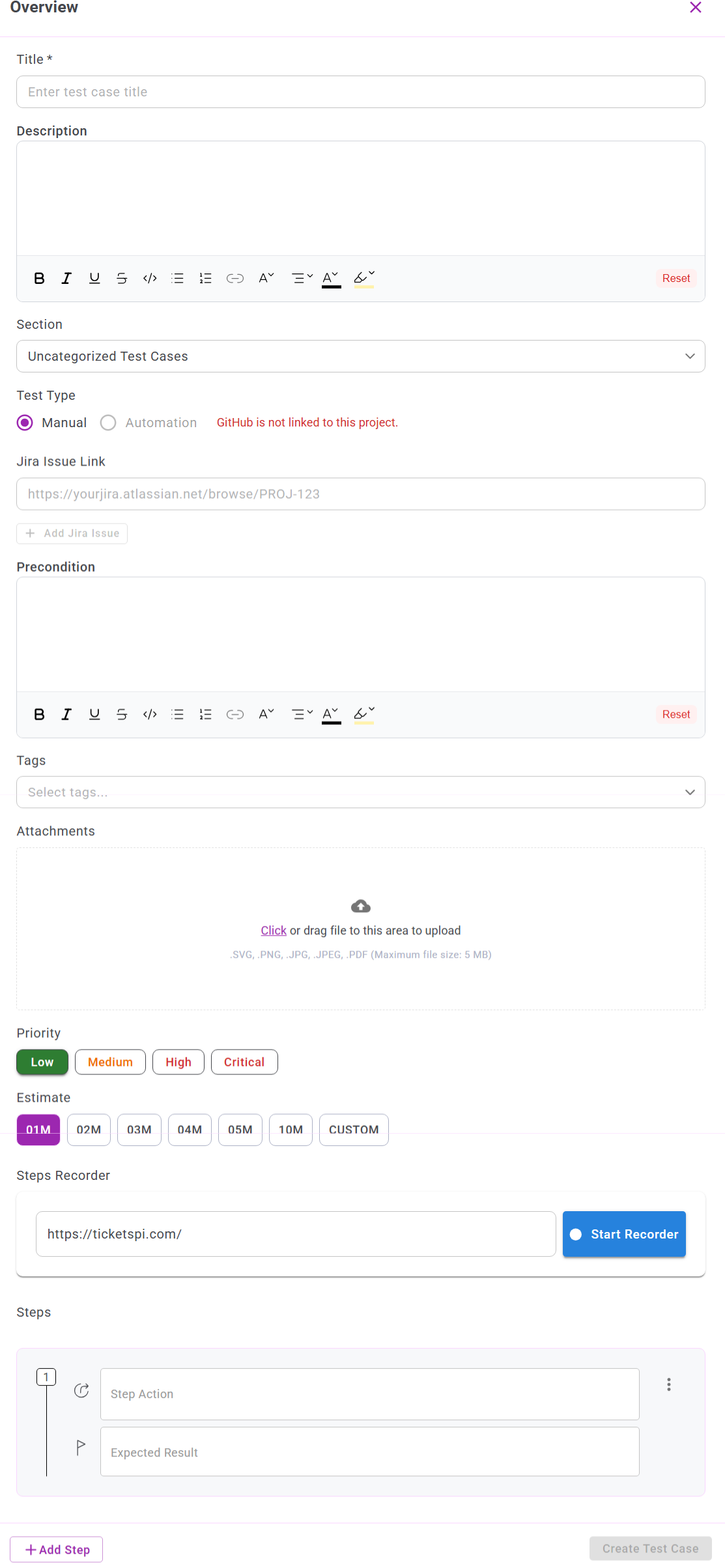
2. Fields and Their Purpose
Below is the complete list of fields available when creating a test case.
Mandatory Fields
These fields are required to successfully create a test case.
Title *
A concise and meaningful name for the test case.
Example:
Verify user login with valid credentials
Test Type *
Select one of the following:
- Manual (default)
- Automation
When Automation is selected, GitHub integration is required and the Automation ID field becomes available.
Priority *
Defines the importance of the test case.
Common values:
- High
- Medium
- Low
Estimated Time *
The time required to execute the test case.
Format is based on project settings (minutes or hours).
Steps *
Defines the sequence of actions and expected results.
Each step includes:
- Step Description
- Expected Result
Click + Add Step to include multiple steps.
Optional Fields
The following fields are optional and may be used for additional context and organization.
Description
Explain the purpose, background, or functionality of the test case.
Rich-text formatting is supported.
Section
Organize test cases under logical modules such as:
- Authentication
- Payments
- Notifications
If no Section is selected, the test case is placed under Uncategorized Test Cases.
Automation ID
(Visible only when Test Type = Automation)
Used to link automated test cases with scripts stored in GitHub.
Jira Issue Link
Attach a Jira issue reference for requirement traceability.
Example:JIRA-78
Precondition
Specify any required state before execution.
Example:
User must be logged out before starting the test.
Tags
Use tags to group or classify test cases.
Examples:
- Regression
- Smoke
- API
- UI
Steps Recorder
The Steps Recorder allows users to automatically capture test steps by recording actions performed on a web application.
This reduces manual effort and improves accuracy in step documentation.
Attachments
Upload supporting files such as:
- Screenshots
- Logs
- Reference documents
- Sample data